 Rapidemo
Settings
Last updated:
Configure recording quality, capture backends, the theme and your license in the Rapidemo Settings, where you can also customize the editor keyboard shortcuts.
Open the Settings with the button in the title bar, or with ctrl ,. Settings are organized into sections: General, Recorder, Exporter, Hotkeys, License and About. The sidebar also shows which version you’re running.
General
Under General you pick the app theme in Appearance: light, dark or system. Diagnostics holds the automatic issue reporting toggle and the Open logs folder button. You can also choose whether release notes appear after an update.
Recorder
Under Recorder, the Capture group holds the Capturer, the Encoder and the recording Frame rate (30 fps or 60 fps, 30 fps by default). System audio sets the default input.
The Desktop Duplication API capturer and Media Foundation encoder are recommended for most computers.
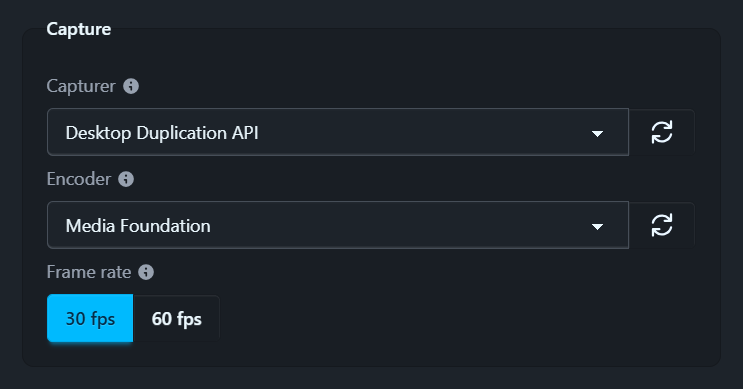
If your GPU supports native video encoding, the encoder dropdown shows additional hardware options. A hardware encoder usually improves system performance while recording, but isn’t available on all configurations. If recording fails, try another capturer or encoder.
Exporter
Under Exporter you set the default save location for your rendered videos.
Hotkeys
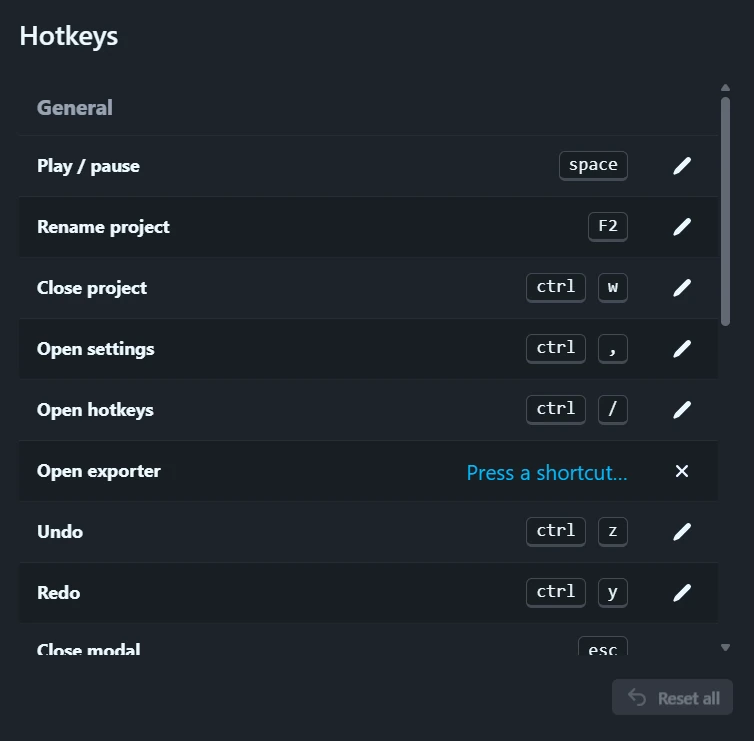
Under Hotkeys you can view and customize the editor keyboard shortcuts. Open this section from anywhere in the app with ctrl /.
License
Under License you activate Rapidemo with your license key, see who the app is licensed to, and open the customer portal. Activation requires an internet connection. If activation fails, your antivirus or firewall may be blocking the connection.