 Rapidemo
Voice enhancement
Last updated:
Clean up your microphone audio with one click. Enhance voice removes background noise and room echo and evens out your volume, all on your device.
Enhance your voice
Open the Camera and microphone properties and click Enhance voice in the Voice enhancement group.
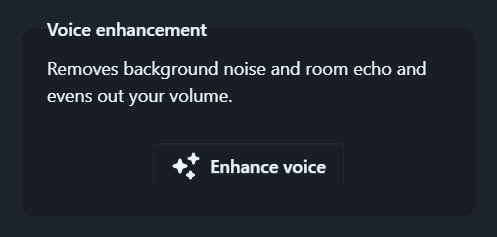
Rapidemo removes background noise, like fans, hum and typing, and the echo of the room. It evens out your volume, so quiet and loud sentences land at the same level. Then it rebuilds your voice to sound like a studio recording.
Enhancement runs on your device, so your audio never leaves your computer. Rapidemo downloads the studio model on first use. Later projects skip the download.
Keep editing while it works. The preview plays your original recording until the enhanced voice is ready, then switches to it.
Voice enhancement changes your microphone track only. System audio stays as recorded.
Compare with the original
Once your voice is enhanced, Use enhanced audio track switches between the enhanced voice and your original recording. Rapidemo keeps both, so switching is instant.
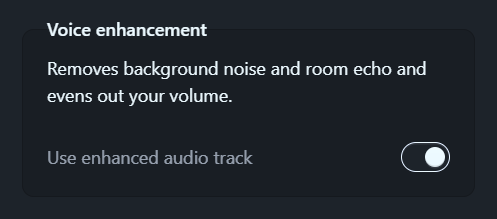
Your export uses whichever one is switched on. If a voice is still being enhanced, the export waits until it’s done.
Multi-scene projects
In a multi-scene project, each Scene is enhanced from its own recording. Enhance voice always applies to the Scene you have selected on the timeline.
Scenes are enhanced one at a time. Starting another while one is running queues it.
Computers that can’t run the studio model
On some computers, the studio model can’t run. Rapidemo then still removes background noise and evens out your volume, but the room’s echo stays and your voice isn’t rebuilt. Rapidemo tells you when this happens.