
How to record professional online course videos on Windows

You do not need a studio or an editing background to make course videos that look and sound professional. Clear audio, a crisp picture, and easy-to-follow visuals are what matter, and Rapidemo automates the visual polish on Windows. Here is how.

Free to record and edit. License unlocks export.

Rapidemo is built for Windows

Get a download link sent to your email for when you're back at your PC.

Check your inbox for your download link.

Just one email, no spam. Download for Windows.

Record professional lessons, step by step

When learners call a course "unprofessional," they usually mean the audio was rough or the text was blurry, not the motion. So get the fundamentals right first, clear sound and a sharp picture, then make each step easy to follow with automatic zoom and a visible cursor. Rapidemo handles the visual polish so you can focus on teaching. Here is the process.

  1. 1

    Get clear audio first

    For course videos, audio is what learners judge most. Muffled voices, echo, and background noise read as unprofessional faster than anything visual. Use a decent mic, record in a quiet, soft room, and speak close to the mic. Nail this before you worry about visuals.
  2. 2

    Record lessons at a crisp resolution

    Blurry text is a common complaint in online courses. Record and export at a high resolution so code, slides, and UI stay sharp, and record a specific window or area to keep the frame focused on the lesson.
  3. 3

    Use automatic zoom so students can follow each step

    When you click or point to something small, students need to see it. Rapidemo automatically zooms in on the part of the screen you are working in, so the important detail is always clear without you resizing anything.
  4. 4

    Smooth the cursor and keep it visible

    In a lesson, the cursor is your pointer. Rapidemo smooths its motion and lets you enlarge it and change its theme, so students can always track where you are on screen.
  5. 5

    Add subtitles for accessibility and retention

    Captions help non-native speakers, learners in noisy places, and accessibility. Generate them in one click and edit the text, so every lesson is easier to follow.
  6. 6

    Keep a consistent look across lessons

    A course feels professional when every lesson matches. Save an editor preset in Rapidemo and reuse it, so your zoom style, layout, and cursor stay consistent from lesson one to the last.

Online course videos: FAQ

Common questions about recording online course videos on Windows.

What is the best way to record online course videos on Windows?

Start with clear audio and a crisp, high-resolution capture, then use a recorder that makes each step easy to follow. On Windows, Rapidemo automatically zooms in on what you are demonstrating, smooths the cursor, and adds subtitles, so lessons look professional without editing skills.

Why do my course videos look or sound unprofessional?

Usually it is the audio (echo, background noise, low volume) or a blurry export, not the visuals. Fix those two first and the lesson immediately feels more professional.

How do I keep my course videos consistent across lessons?

Reuse an editor preset. Save your zoom style, layout, cursor, and subtitle settings once, then apply them to every lesson so the whole course looks consistent.

Do I need to be a video editor to make an online course?

No. Rapidemo adds the zoom, cursor smoothing, and subtitles automatically, so you record your lesson once and get a polished result without learning complicated editing software.

Can I try Rapidemo for free?

Yes. Download Rapidemo and use every feature for free. You only need a license to export your finished video.

How much does Rapidemo cost?

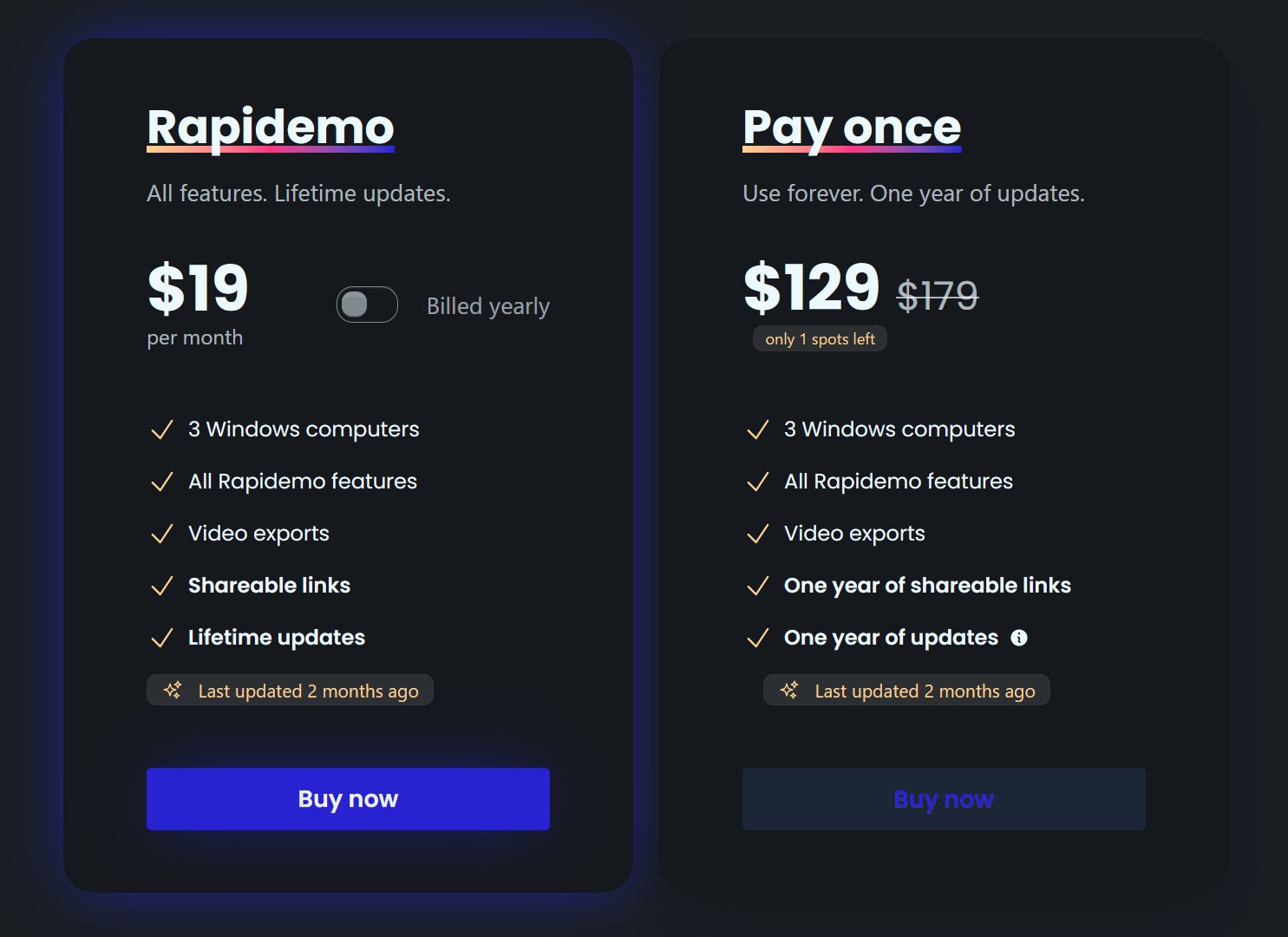
Rapidemo starts at $9/month billed annually, with a monthly plan and a one-time lifetime license also available. See the pricing page for full details.

Can I get a refund?

Yes. Lifetime license purchases are refundable within 7 days. Subscriptions and lifetime renewals are non-refundable.

What Rapidemo users are saying

840+ creators record beautiful screen recordings with Rapidemo.