
How to make YouTube tutorials look professional
The tutorials that keep viewers watching are clear, easy to follow, and polished, not heavily edited. Crisp capture, automatic zoom, a smooth cursor, and subtitles get you most of the way, and Rapidemo automates them on Windows. Here is how.Free to record and edit. License unlocks export.
Rapidemo is built for Windows
Get a download link sent to your email for when you're back at your PC.
Make your tutorial look professional, step by step
A professional-looking tutorial is mostly clarity: sharp text, clear audio, and visuals that make each step easy to follow. You do not need a heavy editing workflow to get there. Rapidemo records your screen and automatically adds the zoom and cursor polish that keeps viewers oriented, so you can focus on teaching. Here is the process.
-
1
Plan a tight structure: hook, steps, payoff
Professional tutorials respect the viewer's time. Open with the result they will get, walk through the steps in order, and cut the rambling. A clear structure is what makes a tutorial feel produced, not just recorded. -
2
Record a crisp screen with clear audio
Two things make a tutorial look amateur fast: blurry text and bad sound. Record at a high resolution so code and UI stay sharp, and use a decent mic in a quiet room. Get these right before any effects. -
3
Zoom in on what you are doing
Viewers cannot follow a step they cannot see. Rapidemo automatically zooms in on the buttons, fields, and menus you click, so the detail is always clear, without you resizing windows or adding zooms by hand. -
4
Smooth the cursor and fine-tune the zooms
A gliding cursor is easier to follow than a jittery one. Rapidemo smooths the cursor automatically and adds zooms for you; if a zoom looks off, remove or adjust it in the timeline. -
5
Burn in subtitles
Many people watch tutorials muted or in noisy places. One-click subtitles keep your tutorial followable and boost watch time. Edit the text and styling to match your channel. -
6
Export at the right size for YouTube
Export 1080p or 4K in 16:9 for standard videos, or switch to 9:16 for a Short, from the same recording. Crisp export keeps your tutorial looking sharp on every screen.
Professional YouTube tutorials: FAQ
Common questions about making YouTube tutorials look professional.
How do I make my YouTube tutorials look more professional?
Record a crisp screen with clear audio, zoom in on what you are doing so viewers can follow, smooth the cursor, add subtitles, and export at 1080p or 4K. Rapidemo automates the zoom, cursor smoothing, and subtitles on Windows, so tutorials look produced without heavy editing.
What screen recorder is best for YouTube tutorials?
Use one that keeps steps easy to follow. On Windows, Rapidemo automatically zooms in on your clicks and smooths the cursor, which is exactly what makes a tutorial clear, and it exports in the resolutions and aspect ratios YouTube needs.
How do I add zoom to a YouTube tutorial?
Record with Rapidemo and it adds smooth zoom-in animations on your clicks automatically, then lets you adjust or remove any of them. You do not have to keyframe zooms by hand.
How do I make a tutorial easy to follow?
Keep a tight structure and a steady pace: one step at a time, in order, with no long pauses. Rapidemo keeps the visuals clear, so your main job is the pacing.
Can I try Rapidemo for free?
Yes. Download Rapidemo and use every feature for free. You only need a license to export your finished video.
How much does Rapidemo cost?
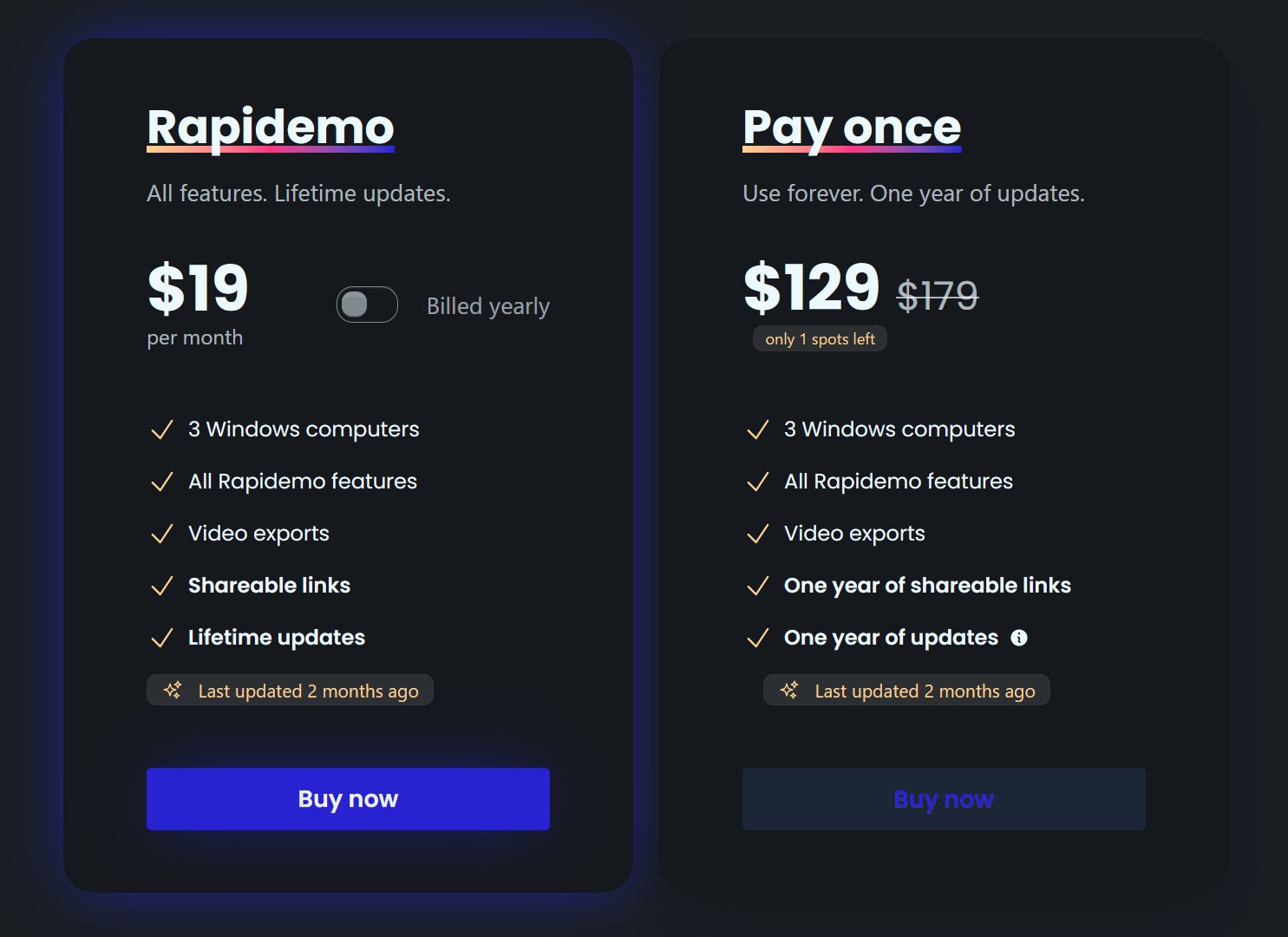
Rapidemo starts at $9/month billed annually, with a monthly plan and a one-time lifetime license also available. See the pricing page for full details.
Can I get a refund?
Yes. Lifetime license purchases are refundable within 7 days. Subscriptions and lifetime renewals are non-refundable.
What Rapidemo users are saying
840+ creators record beautiful screen recordings with Rapidemo.