 Rapidemo
Clip customization
Last updated:
Customize each Clip in its properties: choose a layout, set the audio volumes and playback speed, and time its transitions.
Select a Clip by clicking its timeline element. Its properties appear next to the preview.
Layouts
For each Clip you can choose from five layouts: Camera overlay, Spatial, Side-by-side, Only camera and Only screen. Rapidemo animates the transitions between layouts automatically.
Some layouts are only available if you’ve recorded your camera.
Audio volumes
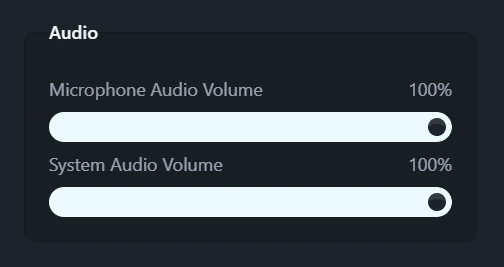
Each Clip has its own microphone volume and system audio volume. Lower a Clip’s microphone gain to soften a loud take, or mute the system audio for a section where your computer’s sounds would distract.
Playback speed
Speed up boring sections, for instance while you’re typing or waiting for a progress bar. Change the playback speed in the Clip’s properties. Each Clip’s speed is independent. See speed up a Clip.
Intro and outro timing
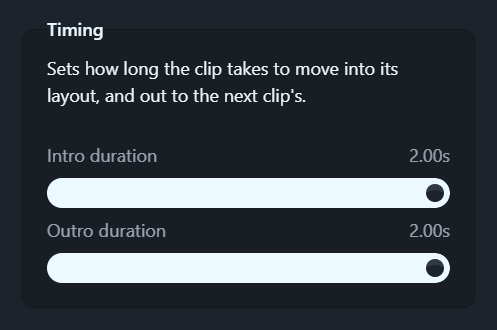
Each Clip has an Intro duration and an Outro duration, up to 2 seconds each. They set how long the Clip takes to transition in, and out to the next Clip.
Hide the cursor
Hide cursor drops the cursor for one Clip.
Camera per clip
The camera’s position and scale can be set per Clip. See the camera overlay layout.