 Rapidemo
Scene transitions
Last updated:
Join adjacent Scenes with a dip-to-black fade. Set intro and outro durations per Scene and fade the video in and out, all without adding extra time.
Add a transition between scenes
Adjacent Scenes are joined with a dip-to-black transition: the video fades to black and back into the next Scene. By default, every boundary between two Scenes gets an automatic 500 ms fade.
Edit a transition in the Scene’s properties: select the Scene on the timeline, or right-click it and choose Customize. The Intro duration and Outro duration sliders set the fade at each edge of the Scene, up to 2 seconds each. Set a slider to 0 to remove that fade. Audio fades along with the picture.
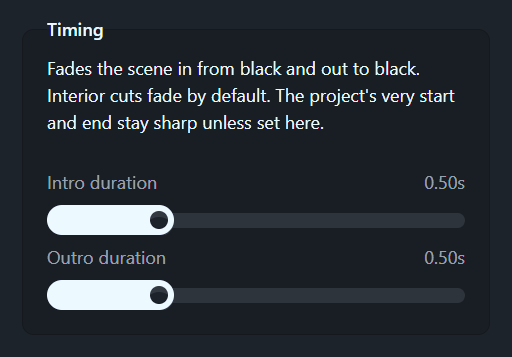
A transition adds no extra time to the video. The fade overlaps the Scenes’ existing footage, so your video’s length stays the same.
Fade in and fade out
The video’s start and end have no fade by default. Give the first Scene an Intro duration to fade in from black, or the last Scene an Outro duration to fade out.
Apply a fade to other scenes
In multi-scene projects, the Apply fade to other scenes button copies the current Scene’s fade settings to Scenes you choose from a checklist.