
How to add zoom and a smooth cursor to a screen recording on Windows
Most Windows screen recorders capture raw video, so adding zoom and smoothing a shaky cursor means manual editing or third-party scripts. Rapidemo does both automatically. Here is the fastest way, step by step.Free to record and edit. License unlocks export.
Rapidemo is built for Windows
Get a download link sent to your email for when you're back at your PC.
How to add zoom on Windows, step by step
The fastest way to add zoom and a smooth cursor on Windows is to record with a tool that does it for you. Rapidemo detects your clicks and adds the zoom animations and cursor smoothing automatically. Here is how.
-
1
Choose a recorder that can zoom and smooth the cursor
On Windows, most recorders (like OBS Studio or the built-in Xbox Game Bar) capture raw video with no zoom and no cursor smoothing. Rapidemo is built to add both automatically, so you do not need plugins, scripts, or keyframing. -
2
Record your screen
In Rapidemo, choose the full screen, a window, or an area, add your webcam and microphone if you want them, and start recording. Rapidemo records your mouse movement separately from the screen, which is what lets it smooth and animate the cursor afterward. -
3
Let Rapidemo add zoom on clicks automatically
When you stop recording, Rapidemo detects where you clicked and adds smooth zoom-in animations to those moments (auto-zoom), then eases back out. You never place a single keyframe. -
4
Get a smooth cursor automatically
Rapidemo replaces the jittery mouse path with an eased, cinematic glide and swaps the pixelated system cursor for a sharp vector one that stays crisp when zoomed in. -
5
Fine-tune the zooms and cursor in the timeline
Adjust any zoom's depth, position, or timing, add your own zoom regions, or remove ones you do not want. You can also change the cursor size and color to match your content. -
6
Export your video
Export up to 4K at 60fps, and switch aspect ratios (16:9, 9:16, 1:1) if you need a vertical or square version for social.
Adding zoom and cursor smoothing: FAQ
Common questions about adding zoom and a smooth cursor on Windows.
How do I add zoom to a screen recording on Windows?
Record with a tool that adds it for you. Rapidemo detects your clicks and adds smooth zoom animations automatically, so you never open a video editor to place them by hand.
Can OBS zoom in during recording?
Not natively. OBS Studio has no built-in live zoom, so users rely on third-party scripts or plugins. Rapidemo adds zoom automatically after you record, with no setup.
How do I smooth a jittery cursor in a screen recording?
Rapidemo records the mouse separately from the screen and replaces the shaky path with a smooth, eased motion automatically. Most recorders burn the raw cursor into the video, so it cannot be smoothed afterward.
What is the easiest way to add zoom to a screen recording?
Use a recorder that zooms automatically. Rapidemo zooms in on clicks and smooths the cursor from a single take on Windows 10 and 11, so you do not keyframe anything.
Can I try Rapidemo for free?
Yes. Download Rapidemo and use every feature for free. You only need a license to export your finished video.
How much does Rapidemo cost?
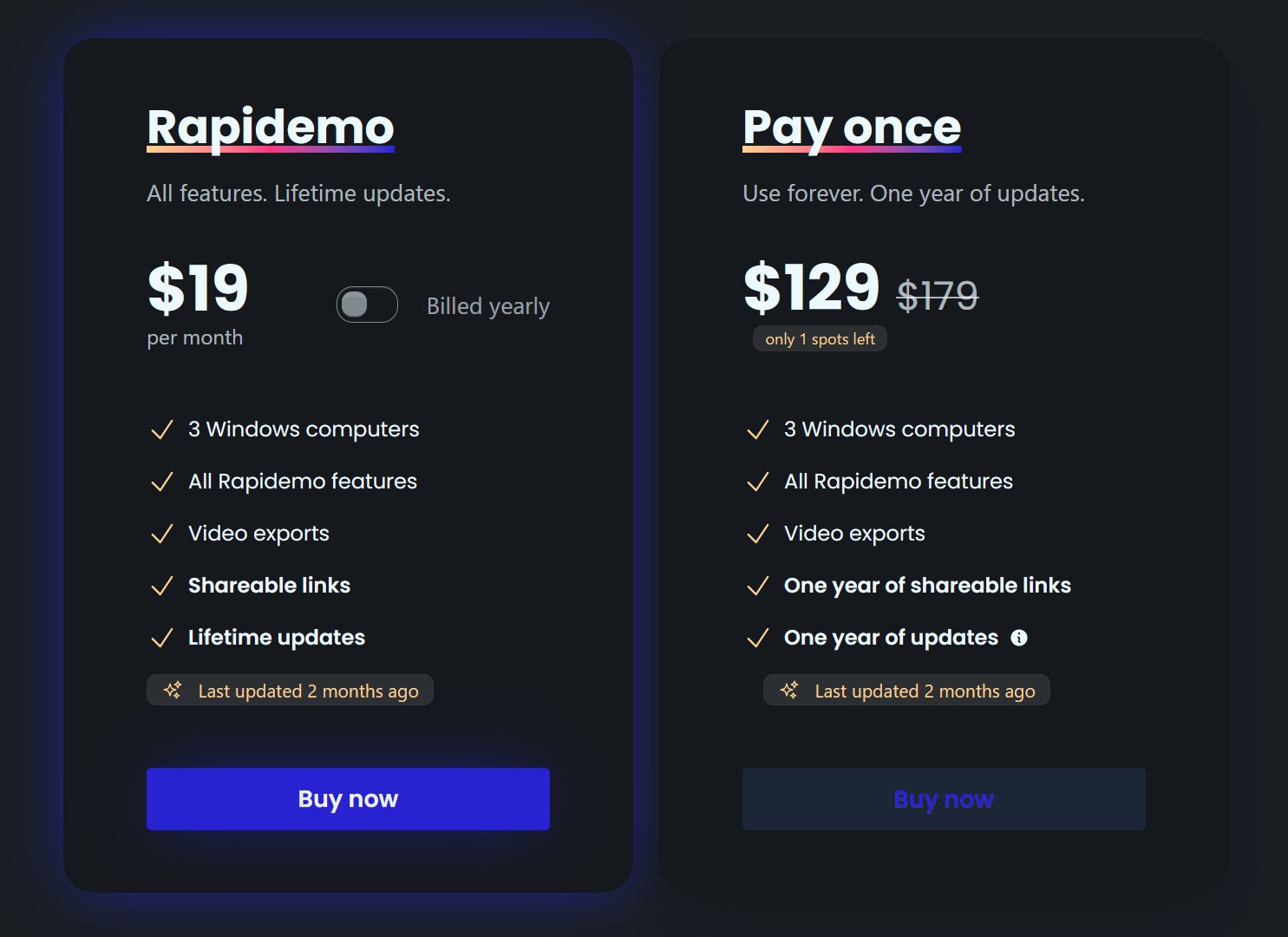
Rapidemo starts at $9/month billed annually, with a monthly plan and a one-time lifetime license also available. See the pricing page for full details.
Can I get a refund?
Yes. Lifetime license purchases are refundable within 7 days. Subscriptions and lifetime renewals are non-refundable.
What Rapidemo users are saying
840+ creators record beautiful screen recordings with Rapidemo.