Screen Studio alternatives

Best Screen Studio alternatives in 2026

Screen Studio is macOS-only. If you're on Windows, or just want to see how other tools compare on automation, editing, and pricing, here are the five best alternatives. Each pick is ranked for the job it actually does well, with honest pros and cons so you can match a tool to your use case.
Try for free

No credit card required

01

Rapidemo

Our pick
Best for Polished product demos and tutorials on Windows
Platforms Windows 10 and 11
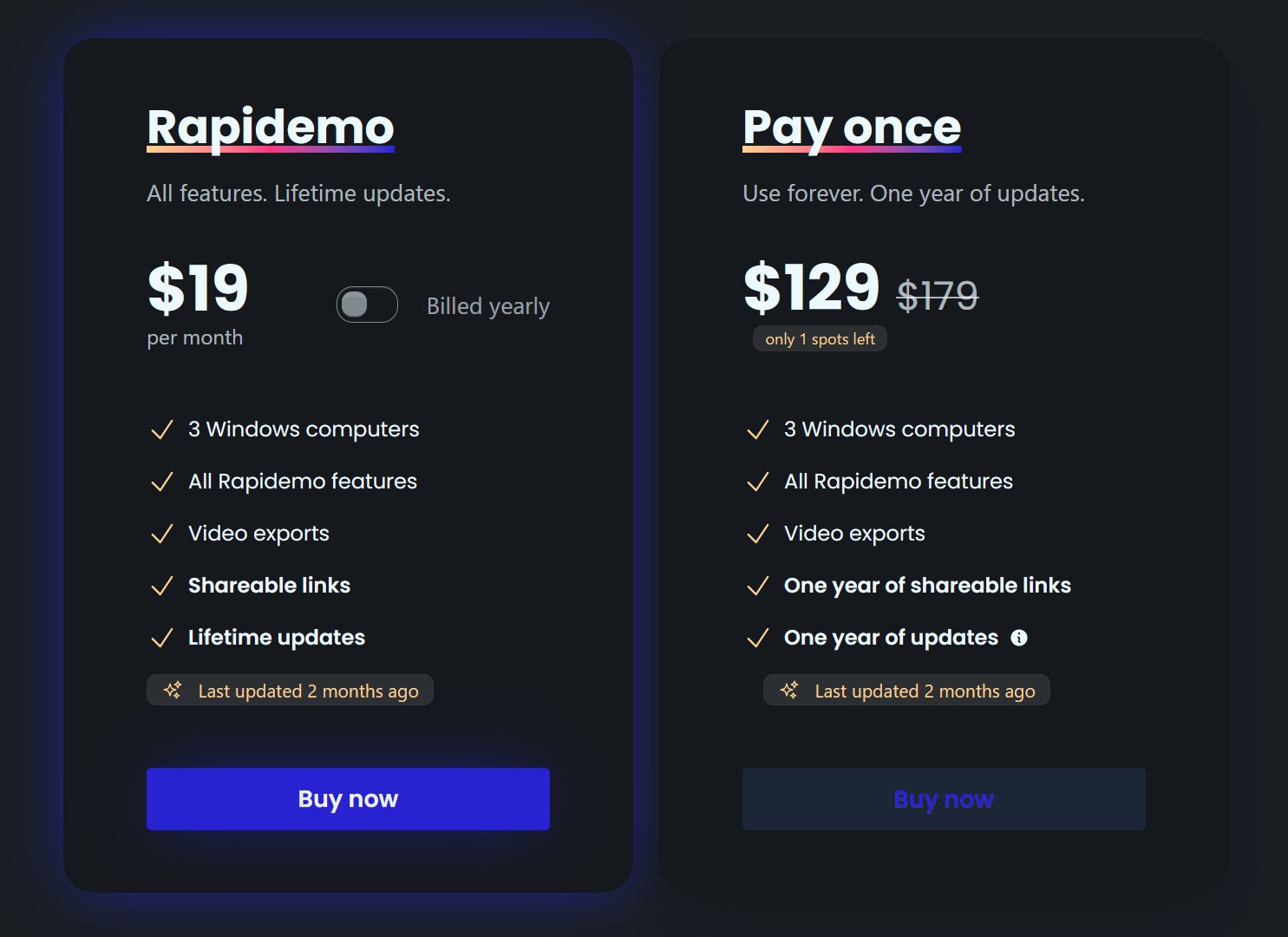
Pricing $19/month, $108/year, or $139 lifetime

Rapidemo is the closest match to Screen Studio for Windows users. It automatically zooms in on clicks, smooths the cursor path, generates subtitles in one click, and lets you swap between fullscreen, side-by-side, and camera-overlay layouts per clip. Like Screen Studio, it supports shareable editor presets so you can lock in a consistent look across videos and team members. The editing model is the same "record once, tweak a few things, export" loop that made Screen Studio popular, built natively for Windows 10 and 11.

Pros

  • Automatic zoom animations and cursor smoothing, no manual keyframing
  • One-click subtitle generation with editable timing and styling
  • Multiple layouts per video (fullscreen, side-by-side, camera overlay)
  • High quality vector cursors that stay crisp at 4K
  • Transparent pricing, subscription or lifetime, no contact-sales wall

Cons

  • Windows only, not available on macOS or Linux today
  • Rendering step is fast but not instant, so it's overkill for throwaway internal messages
Best for Full manual editing with callouts, quizzes, and effects libraries
Platforms Windows and macOS
Pricing From $179.88/year or $299.99 one-time

Camtasia is a full-featured video editor with a screen recorder attached. It has a deep effects library, callouts, annotations, quizzing features, and AI-powered auto-zoom (SmartFocus) and dynamic captions. The tradeoff is complexity: SmartFocus and captions require manual application per clip, and the full timeline editor has a steep learning curve for non-editors.

Pros

  • Comprehensive editor with annotations, callouts, quizzes, and SCORM export
  • AI-powered SmartFocus auto-zoom and dynamic captions
  • Cross-platform, works on Windows and macOS

Cons

  • Auto-zoom requires manual setup per segment (SmartFocus), not automatic on every click
  • Steep learning curve for non-editors
  • Expensive compared to modern alternatives
Best for Quick async team updates shared via a link
Platforms Windows, macOS, Web, iOS, Android
Pricing Free tier; paid from $12.50/user/month

Loom is optimized for a different job: instant, disposable internal video messages. Hit record, stop, and the link is already in your clipboard. If you want to publish a polished tutorial, launch video, or client deliverable, you'll outgrow it fast, but for "here's what I meant in that Slack thread," it's still the category leader.

Pros

  • Instant shareable link, zero rendering wait
  • Built-in viewer analytics and reactions
  • Free tier is generous for light internal use

Cons

  • No automatic zoom, cursor smoothing, or layout swapping
  • Output looks like a Zoom recording, not a published video
  • Cloud-first storage, MP4 download only on paid plans
04

OBS Studio

Best for Free recording and live streaming for technical users
Platforms Windows, macOS, Linux
Pricing Free and open source

OBS Studio is the go-to free tool for streamers and technical users who want full control over scenes, sources, and encoding. It records, but it does not edit: no zoom animations, no cursor smoothing, no subtitles. You'll pair it with a separate editor like DaVinci Resolve or Premiere to get a finished video.

Pros

  • Completely free with no usage limits
  • Powerful scene and source compositing
  • Strong live streaming support alongside recording

Cons

  • No built-in editor, recording only
  • No automation: every polish step is manual in a separate tool
  • Setup is technical, not beginner friendly
05

ScreenPal

Best for Lightweight recording with basic editing on any OS
Platforms Windows, macOS, Chromebook, iOS, Android
Pricing Free tier; paid from $4/month

ScreenPal (formerly Screencast-O-Matic) sits between Loom and Camtasia. It records, offers simple trimming and a small effects set, and runs on Chromebooks too. It's a fine pick for teachers and light educational content, but its automation and output polish don't match Screen Studio or Rapidemo.

Pros

  • Runs on Windows, macOS, and Chromebooks
  • Low monthly price and generous free tier
  • Simple editor that non-editors can learn fast

Cons

  • No automatic zoom animations or cursor smoothing
  • Output quality and polish lag behind modern alternatives
  • Free tier watermarks your video and limits length
Download free trial Windows 10 and 11
Explore all features

Want a head-to-head?

See the full feature-by-feature comparison between Rapidemo and Screen Studio.

Frequently Asked Questions

Still got questions? Get in touch.

What is Rapidemo?

Rapidemo is an automatic screen recording app for Windows 10 and 11. It records your screen, cursor, camera, and microphone, then automatically adds zoom animations on clicks, smooths the cursor, generates subtitles, and applies cinematic layouts.
The result: a single take becomes a polished video ready to publish, without professional editing skills. Built for creators, founders, and agencies producing tutorials, product demos, launch videos, and client deliverables.

What makes Rapidemo different from other screen recording tools?

Rapidemo captures more than just your desktop.
It records your screen without the cursor and tracks mouse interactions separately. After the recording, the data is combined and a custom cursor is overlaid on the video.
The tracked mouse data lets Rapidemo create effects and animations based on clicks and cursor movements, automatically. It also enables many cursor customization options in the editor.
Conventional screen recording software captures the screen, including the mouse cursor, requiring professional post processing and editing skills to customize the cursor and animate mouse events.

Can I try Rapidemo?

Yes! You can try all features, just download Rapidemo. To export your recorded video you'll need a license.

What Windows versions does Rapidemo work on?

Rapidemo was tested on Windows 10 and 11. It might work on earlier versions too. If you run into problems we're happy to refund you within our refund policy. ARM64 is currently not officially supported.

Can I record anything on my desktop or just my browser?

Rapidemo is a standalone app. This means that you can record anything on your desktop. This could be the entire screen or a specific window. Optionally, you can record your webcam and microphone too.

Does my lifetime license expire after a year?

No. After purchasing a license, you can use Rapidemo forever. You'll receive updates until one year from the purchasing date. After that you can still use Rapidemo as-is, you'll just miss out on any new features.

What file format are videos exported to?

Rapidemo exports MP4 videos and automatically chooses the best bitrate settings for the chosen aspect ratio, resolution and frame rate.

Is there a student discount?

Yes. There is a 40% educational discount, valid for both lifetime and subscription access. Discounts on subscriptions are capped to one year.
If you have an email address from your university or educational institution you can request a student discount here.
Don't have a university email address? Just send an email with proof of your student status (e.g. student ID) and the type of license you're looking to purchase (monthly or yearly subscription, lifetime license) to tim@getrapidemo.com. I'll get back to you with a discount code shortly.

Who is Rapidemo designed for?

Rapidemo is perfect for anyone who wants to create standout screen recordings.
Rapidemo goes beyond conventional screen recording software. It automatically applies animations to create beautiful, easy to follow and engaging videos and includes powerful, yet easy-to-use editing and design tools that don't require professional editing skills.
It's a great choice for creators looking to record tutorials, online courses, product demos, team updates, presentations, how-to videos, onboarding videos, investor updates, community updates, sales videos, promotional content, educational videos and more.

Can I get a refund if I'm not satisfied?

Feel free to ask for a refund of your lifetime license (pay once) purchase within 7 days. If the product doesn't meet your expectations, inform us, and we'll promptly reimburse your purchase.
Subscriptions and lifetime license renewals are non-refundable.

Are there versions for MacOS and Linux?

Rapidemo is currently built for Windows 10 and 11. macOS and Linux support is under evaluation, with no committed timeline yet.

Using MacOS today? Check out the excellent Screen Studio .

Is my recording sent to the cloud?

No. Recording, editing, subtitle generation and video processing happens locally on your computer. Rapidemo only sends license-related data and basic error reports to the server. Error reporting helps us create a better user experience and improve Rapidemo. You can opt out of error reporting at any time in the app.

Can I renew my lifetime license to receive updates after expiration?

Yes. Renewals are available for $69. Renew to receive the latest updates for another year or continue using your existing version forever.

Do I need a new license if I switch PCs?

No. If you don't want to use Rapidemo on both PCs you don't need another license. You can just deactivate the license after logging in, and then activate it again on the other PC.

Do I need admin rights to install Rapidemo?

No. You should be able to install Rapidemo without admin rights. If you're in doubt, download Rapidemo for free and see if it works with your setup.

What Rapidemo users are saying

660+ creators record beautiful screen recordings with Rapidemo.