 Rapidemo
Start, stop and pause
Last updated:
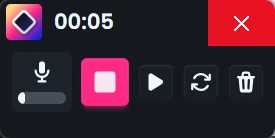
Start, stop, pause and cancel recordings with the on-screen buttons. Each pause creates a Clip boundary you can use as a cut in the editor.
Start and stop a recording
Start and stop recordings with the on-screen buttons.
Rapidemo discards recordings shorter than about 2 seconds. If you stop immediately after starting, no project is created.
Pause and resume
Pause a recording to take a break, prepare the next step, or skip something you don’t want in the video, then resume the same session.
Each pause creates a Clip boundary in the editor: the recording continues in a new Clip. That makes pauses natural cut points. You can adjust or remove them later, since gaps between Clips are cuts.
Cancel or restart a recording
Cancel abandons the current recording. Nothing is saved and no project is created.
You can also restart a recording, which cancels the current take and immediately starts a new one, so you can redo a take in a single step.