 Rapidemo
Combine recordings
Last updated:
Merge multiple recordings into one video by adding them to your project as Scenes. Record new Scenes in place, import projects, or duplicate an existing Scene.
A project can contain multiple Scenes laid end-to-end on one continuous timeline. That’s how you combine several takes, chapters or recordings into a single video.
Add a scene
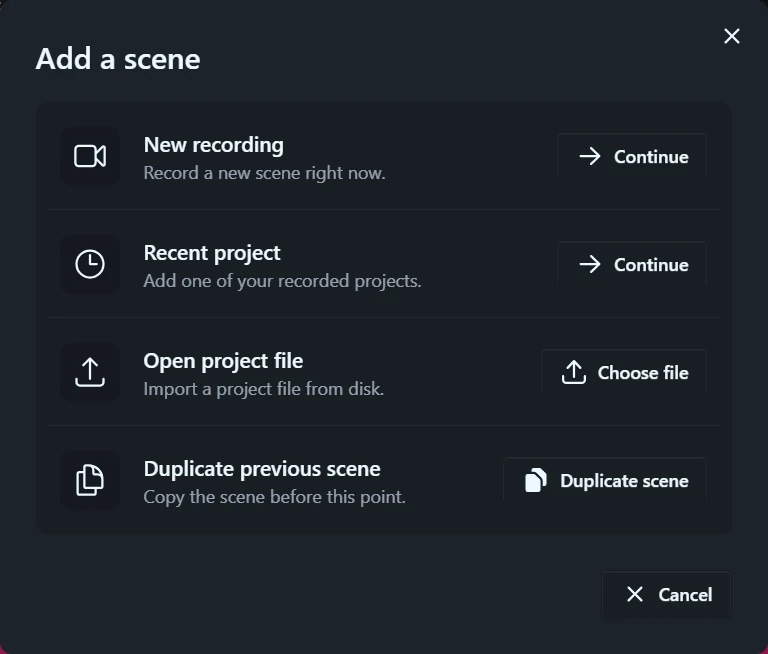
Every Scene element has a + button at its left and right edge, so you can insert a Scene at any position. Clicking + opens a chooser with four ways to add a Scene:
- New recording records a fresh Scene in place. The capture setup is the same as for a normal recording, and the project reopens with the new recording added. Unavailable while an export is running.
- Recent project picks one of your recorded projects.
- Open project file imports any Rapidemo project file from your computer.
- Duplicate previous scene copies the Scene before the insertion point, including its media, look and animations.
Remove a scene
Right-click a Scene element and select Delete, or press del while the Scene is selected, then confirm. Deleting can be undone until you close the project. Later Scenes shift earlier to close the gap. The last Scene can’t be deleted.
One self-contained file
All Scenes’ media stay inside the one project file. Importing another project copies it in, so the combined project remains a single file you can move or back up as a whole.