 Rapidemo
Transcript
Last updated:
Generate subtitles from your recorded audio in the Transcript section. Transcription runs on your device. Nothing is uploaded.
Transcribe audio
Select the Audio language in the Transcription group and click Generate transcript to transcribe your audio. Transcription happens on your device with a local speech-to-text model, so your audio never leaves your computer.
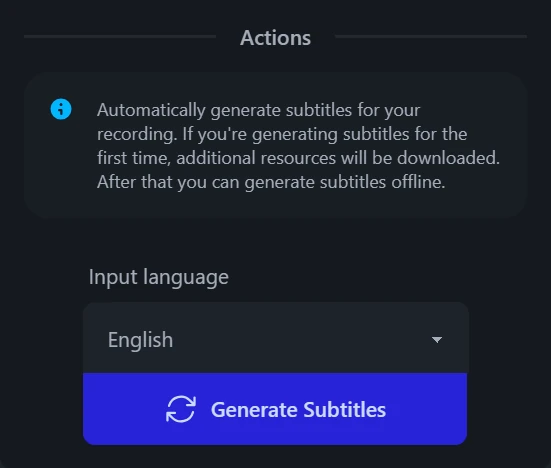
Rapidemo downloads the required resources on first use and starts transcribing. Depending on the length of the video, transcription takes a few moments. Once complete, the result appears in the Transcript section and as Subtitle elements on the timeline.
Once the resources are downloaded, transcription works offline.
To start over, click Delete subtitles and transcribe again.
Model size and custom vocabulary
Pick a Model size (Tiny, Base, Small or Medium) to trade accuracy against speed: a larger model transcribes more accurately, but it’s slower and needs more capable hardware.
Add Custom vocabulary (brand names, product terms, jargon) to help the model recognize words it would otherwise misspell. Separate entries with commas or line breaks.
Multi-scene projects
In a multi-scene project, each Scene is transcribed from its own audio and has its own captions. Generate transcript and Delete subtitles always apply to the Scene you have selected on the timeline.
Scenes transcribe one at a time. Starting a transcription while another is running queues it.
Position and width
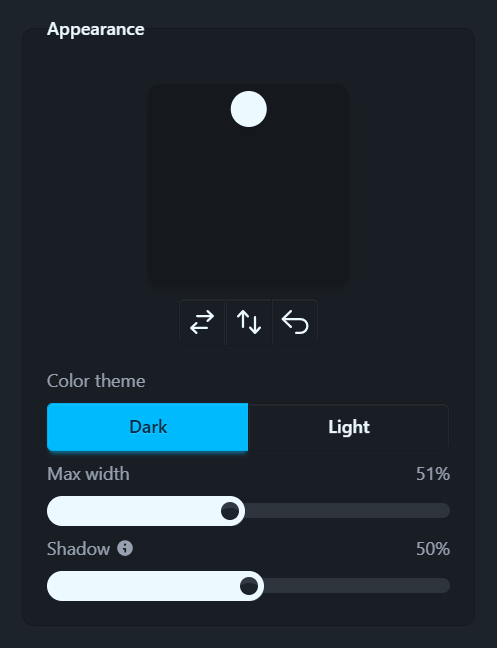
In the Appearance group, the Position control lets you move the subtitles freely, with shortcut buttons to center vertically, center horizontally, or reset the position.
The Max width control sets how much of the video’s width subtitles may use, for example so they don’t overlap with your camera overlay.
While styling, it helps to scrub to a part of the video that shows subtitles.
Color theme and shadow
Choose a dark or light subtitle Color theme to match your video’s style.
The Shadow control adjusts the drop shadow intensity of the subtitles. Set it to 0% to remove the shadow completely.
Edit subtitles on the timeline
After transcription, your subtitles appear as elements on the timeline.
Adjust subtitle timing by moving and resizing subtitle elements. Create a new subtitle element by double-clicking an empty part of the timeline, or right-click and select New.
To edit the text, select a subtitle element and change its Content in the properties next to the preview.