Best Screencastify alternatives in 2026

Screencastify is a browser recorder built for classrooms: Chromebook support, a teleprompter, Google Drive hand-off. Its free plan allows a set number of videos up to 30 minutes each, with a watermark, and the editor is browser-only. These six tools are the usual next step, from free recorders to a Windows app that edits the lesson for you.

Tool Best for Platforms Auto zoom Stays on device Pricing
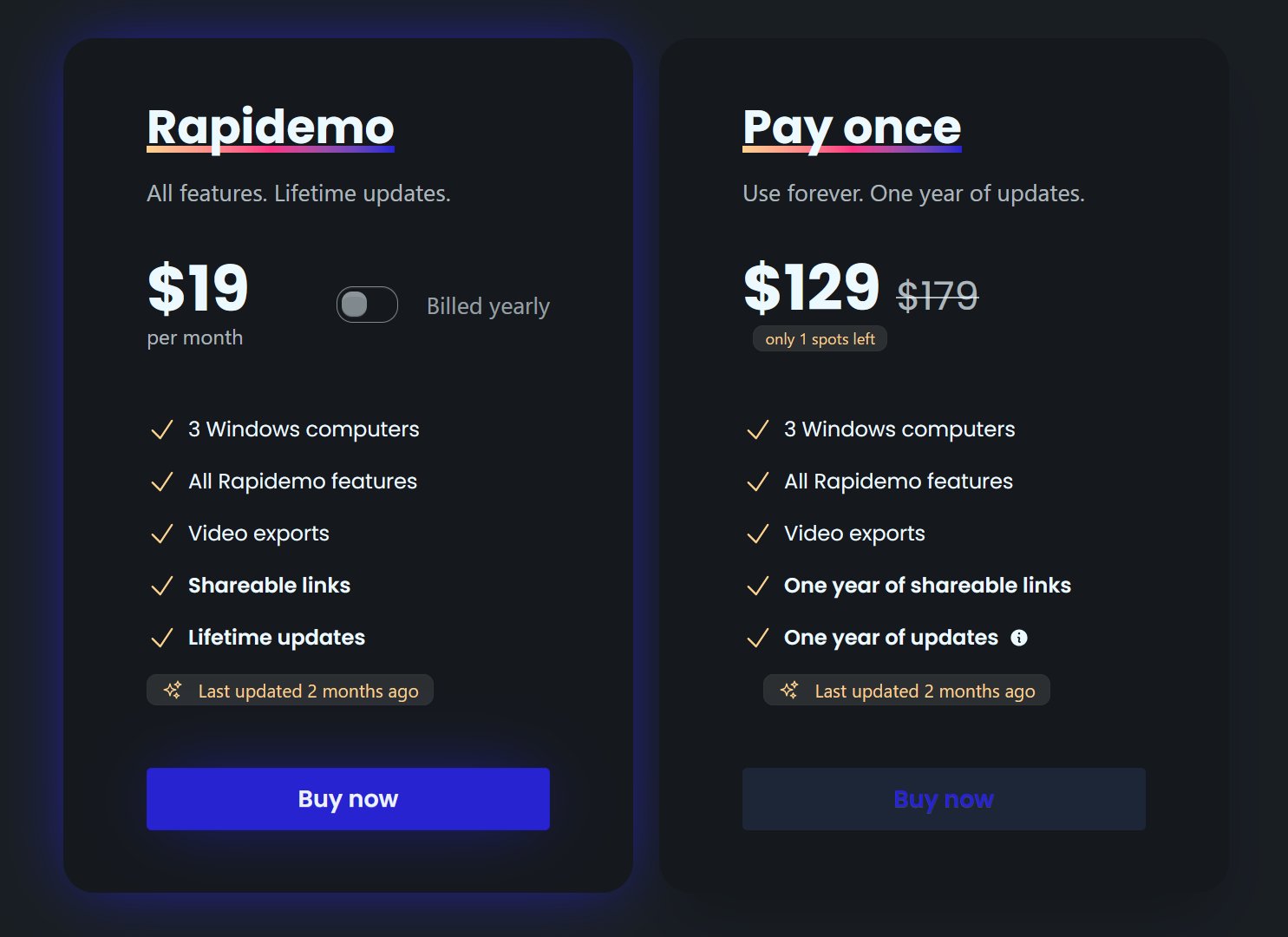
Rapidemo Polished, publishable screen video on Windows Windows $108/year, $19/month, or $199 lifetime
ScreenPal Classroom recording with hosting and quizzes Windows, macOS, Chromebook, iOS, Android Free tier; paid from $4/month (billed annually)
Loom Quick async team messages shared by link Windows, macOS, Web, iOS, Android Free tier; paid from $18/user/month
Cap Open source Screen Studio-style editing on Windows, Mac and Linux Windows, macOS, Linux Free for personal use; $58 one-time or $29/year for commercial use
Clipchamp General video editing for Microsoft 365 users with a basic recorder Windows, Web, Chromebook Free tier; premium via Microsoft 365 from $9.99/month
OBS Studio Live streaming and unlimited free capture, edited elsewhere Windows, macOS, Linux Free and open source

Verified on the vendors' own pages. Prices as of November 2026.

01

Rapidemo

Our pick
Best for Polished, publishable screen video on Windows
Platforms Windows
Pricing $108/year, $19/month, or $199 lifetime

Rapidemo is for lessons and tutorials you publish and students rewatch. It records on Windows 10 and 11, zooms in on your clicks so students see what you see, smooths the cursor, generates subtitles on your computer and puts your camera in a styled overlay. Export MP4 up to 4K or a GIF. There is no Chromebook version, and the trial exports nothing until you buy, so it suits teachers on a Windows laptop who want the polish.

Pros

  • Automatic zoom animations and cursor smoothing, no manual keyframing
  • One-click subtitles with editable timing and styling
  • Fullscreen, side-by-side, camera overlay and 3D layouts per Clip
  • Recording, editing and export stay on your computer

Cons

  • Built for Windows 10 and 11 today (macOS and Linux under consideration)
  • Made for videos you publish, not throwaway internal messages

02

ScreenPal

Best for Classroom recording with hosting and quizzes
Platforms Windows, macOS, Chromebook, iOS, Android
Pricing Free tier; paid from $4/month (billed annually)

ScreenPal is the closest like-for-like: a recorder for Windows, Mac and Chromebook with a free tier that has no watermark, plus hosting, quizzes and captions from about $4 a month. Zoom is manual. For most classrooms it replaces Screencastify at a lower price.

Pros

  • Runs on Windows, Mac, Chromebook, iOS and Android
  • Free tier has no watermark and saves MP4 and GIF locally
  • Deluxe plan is $4/month billed annually

Cons

  • Free recordings capped at 15 minutes
  • No automatic zoom or cursor smoothing
  • Auto captions require a paid plan
Best for Quick async team messages shared by link
Platforms Windows, macOS, Web, iOS, Android
Pricing Free tier; paid from $18/user/month

Loom records in the browser or from desktop and mobile apps and shares a link with comments. The free plan caps length and does not download MP4s. Pick it for messages to colleagues and parents, not for published lessons.

Pros

  • Apps on Windows, Mac, iOS and Android plus a Chrome extension
  • Transcript-based editing and filler-word removal
  • Free tier includes transcripts and captions

Cons

  • Free plan caps at 5 minutes, 25 videos and 720p with no download
  • MP4 download is paid only and drops captions and AI edits
  • Auto zoom is still listed as coming soon
04

Cap

Best for Open source Screen Studio-style editing on Windows, Mac and Linux
Platforms Windows, macOS, Linux
Pricing Free for personal use; $58 one-time or $29/year for commercial use

Cap is free for personal use and open source, with a Chrome extension and desktop apps for Windows, Mac and Linux. Studio mode records locally and adds zooms around clicks. A one-time license covers commercial use.

Pros

  • AGPLv3 open source on macOS, Windows and Linux, self-hostable
  • Studio editor is free for personal use with local processing, 4K, GIF and five aspect ratios
  • Commercial license is $58 lifetime or $29/year

Cons

  • Free tier excludes commercial use
  • Captions are a beta local workflow needing a model download; AI transcripts need Pro
  • Pricing page contradicts itself on whether Free includes unlimited local recording
05

Clipchamp

Best for General video editing for Microsoft 365 users with a basic recorder
Platforms Windows, Web, Chromebook
Pricing Free tier; premium via Microsoft 365 from $9.99/month

Clipchamp is Microsoft’s free editor and runs in the browser on Chromebooks. It records in 30-minute sessions, exports 1080p without a watermark and AI captions. The editor is general-purpose and there is no zoom or cursor effect.

Pros

  • Free tier exports 1080p with no watermark
  • AI captions and AI voiceovers in 80 languages
  • Runs in the browser on Windows, Mac and Chromebook plus a Windows app

Cons

  • Screen recordings capped at 30-minute sessions
  • 4K export and brand kit need Microsoft 365 Personal or Family, or Clipchamp Premium
  • No auto zoom, cursor effects or layouts; iOS app deprecated June 2026
06

OBS Studio

Best for Live streaming and unlimited free capture, edited elsewhere
Platforms Windows, macOS, Linux
Pricing Free and open source

OBS Studio is free and records without limits on Windows, Mac and Linux, with no watermark. It has no Chromebook version and no editor, so it suits the teacher who already edits in another tool.

Pros

  • Free and open source (GPL-2.0+) on Windows, macOS and Linux
  • Unlimited scenes and sources with per-source audio filters
  • Records to crash-safe Hybrid MP4 or MKV locally

Cons

  • No post-recording editor, cursor effects or zoom
  • No captions or transcription for recordings
  • No GIF export

What Screencastify does well

It runs on any Chromebook, needs no install beyond the extension, hands recordings to Google Drive and Classroom, and has a teleprompter. For a school on Google Workspace, that is hard to beat for convenience.

Where it stops

The free plan caps the number of videos and watermarks them. Editing is browser-based and basic. There is no automatic zoom or cursor polish, so a software lesson looks like a raw capture, and the master copy lives in the cloud.

How this list was ranked

Free tools that run on Chromebooks rank first, because that is Screencastify’s audience. Then tools that polish the video for you. Prices and limits are the vendors’ own on the date next to the table.

Free to record and edit. License unlocks export.

Rapidemo is built for Windows

Get a download link sent to your email for when you're back at your computer.

Check your inbox for your download link.

Just one email, no spam. Download for Windows.
See how it works
Rapidemo is the best! Easy to work with, no learning curve and super professional output! Can't recommend enough!
Headshot of Rapidemo user Petko
Petko @pbozhinow
records product videos
Thanks to Rapidemo I didn't have to spend a fortune on hiring an editor for my digital courses!
Headshot of Rapidemo user Sebastian
Sebastian @BlameReality
records digital courses

Best Screencastify alternatives in 2026: FAQ

Common questions about choosing between these tools.

What is the best free alternative to Screencastify?

ScreenPal’s free tier has no watermark and runs on Chromebooks. Cap is free for personal use. OBS Studio is free without limits on Windows and Mac. Clipchamp is free on Windows and in the browser.

Is there a Screencastify alternative for Chromebooks?

Yes. ScreenPal, Clipchamp in the browser and Cap’s Chrome extension run on Chromebooks; Cap’s extension records in upload mode only. Rapidemo has no Chromebook version, and neither does OBS; Loom’s extension installs in Chrome, but Loom lists ChromeOS as unsupported.

Which alternative makes lessons look professional?

Rapidemo adds zoom on clicks, cursor smoothing, subtitles and a camera overlay automatically on Windows 10 and 11, so a recorded lesson looks edited from a single take.

Does Screencastify still limit free videos?

Yes. The free plan allows a set number of videos up to 30 minutes each, with a watermark. The table above shows the current limits.

Can I try Rapidemo for free?

Yes. Download Rapidemo and use every feature for free. You only need a license to export your finished video or GIF.

How much does Rapidemo cost?

Rapidemo starts at $9/month billed annually, with a monthly plan and a one-time lifetime license also available. See the pricing page for full details.

Can I get a refund?

Yes. Lifetime license purchases are refundable within 7 days. Subscriptions and lifetime renewals are non-refundable.

What Rapidemo users are saying

950+ creators record their screen with Rapidemo. Here is what they say about it.

Headshot of Harry Symons
Harry Symons
I've been really enjoying using Rapidemo – it's incredibly easy to use and makes creating videos quick and straightforward. The interface is intuitive, and I was able to get started right away without any learning curve. Highly recommend for anyone looking for simple, effective video software.
Headshot of ととしま
ととしま @toyoshima_dev
Rapidemoめっちゃよかったから課金はしようと思うんだけど、買い切りにするか悩むねえ
使うときだけ毎月課金がお得なのは理解してるんだけど、俺は買い切りって言葉に弱えんだ
Headshot of Jonnier
Jonnier @jonniermart
Esta es la mejor herramienta para grabar pantalla en Windows. ❤️
Headshot of original だいすけ
これ、まさにズームマジックですね。なんの気ないトランジションでも効果的に見える。

Screen Recorder for Windows · Rapidemo https://getrapidemo.com/
Headshot of aron
aron @designbyaron
rapidemo is the sauce for windows
Headshot of Harry Symons
Harry Symons
Headshot of Pablo
Pablo @Pabloguiraox
Thanks so much for your incredible tool! It's the BEST screen recording software out there, Amazing job, you're a true legend!
Headshot of Brad
Brad @brad_agi
Rapidemo is sick! It saved me 2k — almost bought a Mac just for Screen Studio.
Records product demos