Loom vs Camtasia

Loom and Camtasia sit at opposite ends of screen recording. Loom records and shares a link in one step and lives in the cloud. Camtasia is a full video editor with a recorder attached and lives on your computer. People compare them because both are the default answer in their category. The right question is what happens to the video after you stop recording.

Loom and Camtasia side by side

Verified on the vendors' own pages. Prices as of November 2026.

Loom Camtasia
Best for Quick async team messages shared by linkCourse and training videos with a full timeline editor
Platforms Windows, macOS, Web, iOS, AndroidWindows, macOS
Pricing Free tier; paid from $18/user/monthFrom $39/year (watermarked); watermark-free from $179.88/year
Loom Camtasia
General
Recording, editing and export stay on your computer
Recording
Record the whole screen, a window or an area
Record camera and microphone
Speaker notes while recording
Editing
Automatic zoom animations on clicks
Cursor smoothing
Change the cursor size and style after recording
Move and resize the camera after recording
Background, padding and rounded corners
Automatic transcript
Subtitles rendered into the video
Split screen, camera overlay and fullscreen in one video
Camera shrinks during zooms
Exporting
Landscape, portrait and square from one project
MP4 export to disk
GIF export

Loom covers 5 of 16, Camtasia covers 13 of 16 categories in this comparison.

When Loom is the better fit

  • You send short walkthroughs to colleagues or customers and want the link in your clipboard the moment you stop.
  • You want comments, view counts and transcripts on the hosted page.
  • You record on a phone or in a browser as often as on a desktop.
  • You will not edit beyond a trim.

When Camtasia is the better fit

  • You build courses or training with cuts, callouts, quizzes and captions.
  • You want the MP4 on your disk and nothing uploaded by default.
  • You need Smart Focus zoom, cursor path editing and templates, and you are willing to apply them in a timeline.
  • A yearly subscription is acceptable; TechSmith sells Camtasia only that way now.

The Rapidemo logo The third option: Rapidemo Our pick

Most people comparing these two want something in between: a video that looks edited, without the editing session, that they can publish rather than send. Rapidemo does that on Windows 10 and 11. It records once and adds the zoom on clicks, cursor smoothing, subtitles and layouts for you, exports the MP4 locally up to 4K, and gives you a share link if you want one. It does not try to be a general editor, which is the point.

Free to record and edit. License unlocks export.

Rapidemo is built for Windows

Get a download link sent to your email for when you're back at your computer.

Check your inbox for your download link.

Just one email, no spam. Download for Windows.

Recording

Loom records from a desktop app, a Chrome extension or its mobile apps, and uploads as it goes.

Camtasia records from its desktop app on Windows and Mac and writes the file to disk.

Both capture the screen, a camera and a microphone.

Neither places zooms automatically while you record; Camtasia’s Smart Focus is applied in the editor, and Loom lists auto zoom as coming soon.

Editing

This is the gap. Loom’s editing is trimming, stitching and a handful of effects on the hosted video.

Camtasia is a multi-track timeline with annotations, callouts, transitions, quizzes, captions and a template library.

If the word “timeline” makes you tired, neither tool is for you, and the third option above is.

Where your video lives

Loom keeps the video in your Loom account. You can download an MP4 on paid plans, and the download drops captions and chapters.

Camtasia keeps everything on your computer and only uploads if you choose Screencast or another host.

Price

Loom’s free plan has a recording cap and no MP4 download. Paid plans are per user per month.

Camtasia moved to yearly subscriptions in 2025, and the cheapest plan watermarks exports.

Check the comparison table above for the prices on the day we verified them.

Loom vs Camtasia: FAQ

Common questions about choosing between Loom and Camtasia.

Is Camtasia better than Loom for tutorials?

For tutorials you publish, yes. Camtasia gives you a full timeline with callouts, captions and quizzes, and exports locally. Loom is built for messages: fast to share, light on editing, and the MP4 download is paid-only.

Can Loom replace Camtasia?

Only if you never edit. Loom trims and adds a few effects on its hosted page; it has no timeline, and auto zoom is still listed as coming soon. Camtasia is an editor first.

Which is cheaper, Loom or Camtasia?

Loom has a free plan, but it does not download MP4s. Loom’s paid plans are per user per month. Camtasia is a yearly subscription per user, with its cheapest plan watermarking exports. For a solo creator who publishes, Camtasia’s yearly price is often less than a year of Loom Business.

Is there a tool between Loom and Camtasia?

Rapidemo. It records like Loom and polishes like an editor, automatically: zoom on clicks, a smooth cursor, subtitles and layouts from a single take, on Windows 10 and 11.

Can I try Rapidemo for free?

Yes. Download Rapidemo and use every feature for free. You only need a license to export your finished video or GIF.

How much does Rapidemo cost?

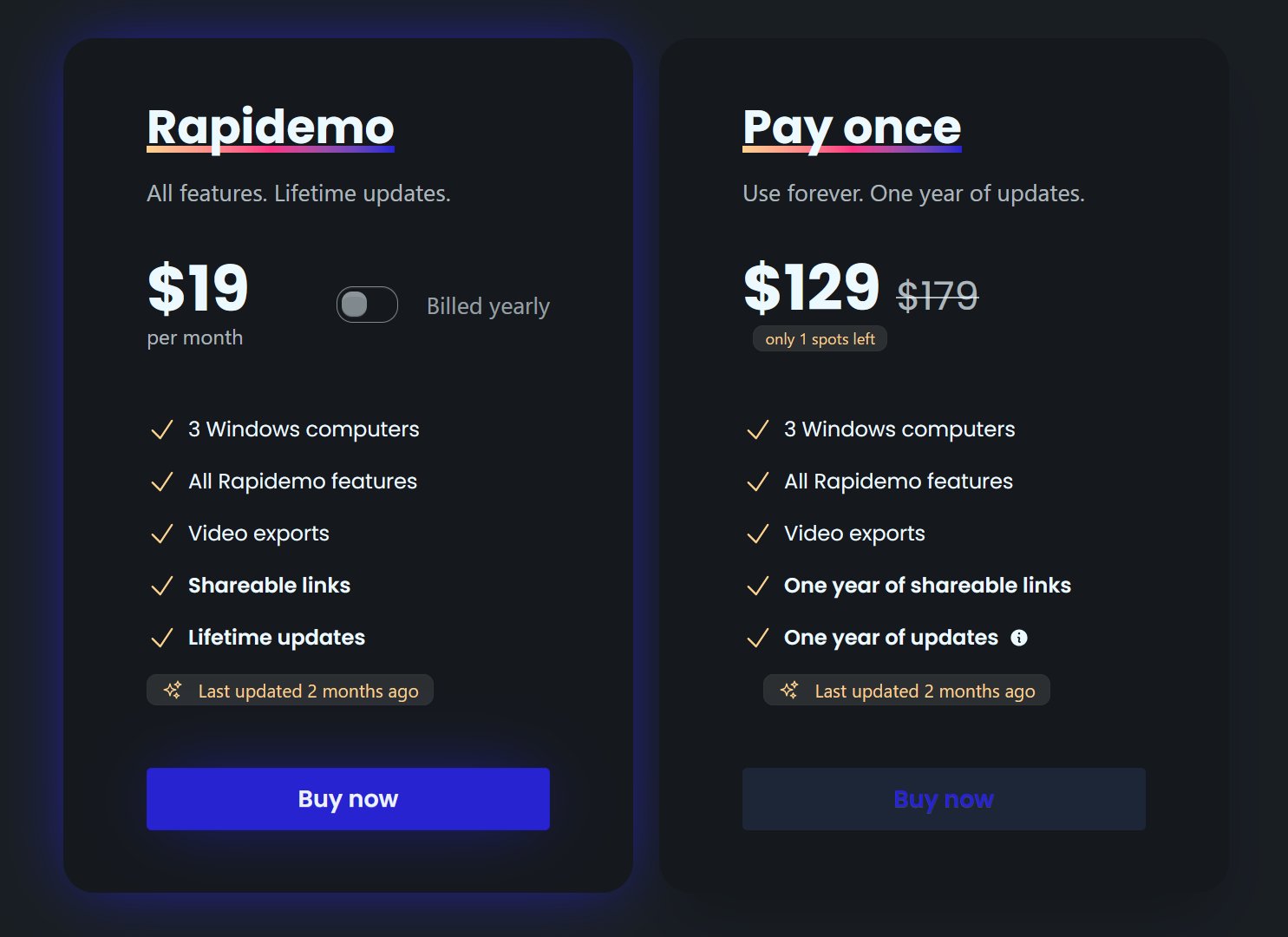
Rapidemo starts at $9/month billed annually, with a monthly plan and a one-time lifetime license also available. See the pricing page for full details.

Can I get a refund?

Yes. Lifetime license purchases are refundable within 7 days. Subscriptions and lifetime renewals are non-refundable.

What Rapidemo users are saying

950+ creators record their screen with Rapidemo. Here is what they say about it.

Headshot of Harry Symons
Harry Symons
I've been really enjoying using Rapidemo – it's incredibly easy to use and makes creating videos quick and straightforward. The interface is intuitive, and I was able to get started right away without any learning curve. Highly recommend for anyone looking for simple, effective video software.
Headshot of ととしま
ととしま @toyoshima_dev
Rapidemoめっちゃよかったから課金はしようと思うんだけど、買い切りにするか悩むねえ
使うときだけ毎月課金がお得なのは理解してるんだけど、俺は買い切りって言葉に弱えんだ
Headshot of Jonnier
Jonnier @jonniermart
Esta es la mejor herramienta para grabar pantalla en Windows. ❤️
Headshot of original だいすけ
これ、まさにズームマジックですね。なんの気ないトランジションでも効果的に見える。

Screen Recorder for Windows · Rapidemo https://getrapidemo.com/
Headshot of aron
aron @designbyaron
rapidemo is the sauce for windows
Headshot of Harry Symons
Harry Symons
Headshot of Pablo
Pablo @Pabloguiraox
Thanks so much for your incredible tool! It's the BEST screen recording software out there, Amazing job, you're a true legend!
Headshot of Brad
Brad @brad_agi
Rapidemo is sick! It saved me 2k — almost bought a Mac just for Screen Studio.
Records product demos