
I've been really enjoying using Rapidemo – it's incredibly easy to use and makes creating videos quick and straightforward. The interface is intuitive, and I was able to get started right away without any learning curve. Highly recommend for anyone looking for simple, effective video software.
How to record your screen as a GIF on Windows
A GIF is the quickest way to share something from your screen: it plays everywhere, with no click, no player and no sound. Free tools give you a raw capture. Rapidemo zooms in on your clicks and smooths the cursor automatically, so the GIF looks polished and the viewer's eye lands where it should. Here is how, step by step.Free to record and edit. License unlocks export.
Rapidemo is built for Windows
Get a download link sent to your email for when you're back at your computer.
How to record your screen as a GIF, step by step
Windows and a handful of free tools can save a screen recording as a GIF, but what you get is the raw capture: small text, a jittery cursor, nothing to draw the eye. Rapidemo adds the zoom and the smooth cursor for you and exports the result as a GIF. Here is how.
-
1
Pick one moment
A GIF is a few seconds long, has no sound and loops forever, so pick one thing: one feature, one fix, one before and after. Anything that needs narration is a video. -
2
Record the window or area
In Rapidemo, record the window or the area the GIF is about, not the full screen. The subject fills the frame, and nothing unrelated ends up in the loop. -
3
Let Rapidemo add the polish
When you stop recording, Rapidemo zooms in on your clicks and smooths the cursor automatically. A GIF is usually shown small, in an email column or a social feed. The zoom keeps the part that matters readable at that size, and the smooth cursor makes a five-second loop look like a product clip instead of a raw capture. -
4
Trim to the moment
Cut the dead time at the start and end in the timeline. A tight loop restarts without a jump, and a shorter GIF is a smaller file. Pro tip: switch on Loop cursor and Rapidemo glides the cursor back to where it started, so the end flows straight into the start. -
5
Export as a GIF
Open the exporter and pick GIF as the format. Choose a resolution up to 1080p and a frame rate of 25, 20 or 10 fps. For an email or newsletter, go lower on both to keep the file small. -
6
Paste it anywhere
A GIF plays in an email, a newsletter, a blog post, a social post, a README, docs or a chat message, with no click and no player. Most email apps do not play video, but a GIF plays right in the inbox. Need sound or a longer video? Export the same project as an MP4.
Recording a screen GIF: FAQ
Common questions about recording your screen as a GIF on Windows.
How do I record my screen as a GIF on Windows?
Record the window or area, trim it to the moment that matters, and export it as a GIF. Rapidemo does all three in one app on Windows 10 and 11. It also adds automatic zoom and cursor smoothing along the way, so the GIF looks polished instead of raw.
Can Rapidemo export a GIF?
Yes. Rapidemo exports MP4 or GIF. A GIF goes up to 1080p at 25, 20 or 10 fps.
Should I use a GIF or an MP4?
Use a GIF for a short, silent loop that should play inline, like in an email, a blog post, a social post, a README or a chat. Use an MP4 when you need sound, a longer video or 4K.
Can I put a screen recording in an email or newsletter?
Yes, as a GIF. Most email apps do not play embedded video, but a GIF plays in the inbox like an image. Keep it short and export at a lower resolution and frame rate so the email stays light.
Is Rapidemo free for recording GIFs?
You can record and edit with every feature for free. Exporting the finished GIF or video requires a license.
Can I try Rapidemo for free?
Yes. Download Rapidemo and use every feature for free. You only need a license to export your finished video or GIF.
How much does Rapidemo cost?
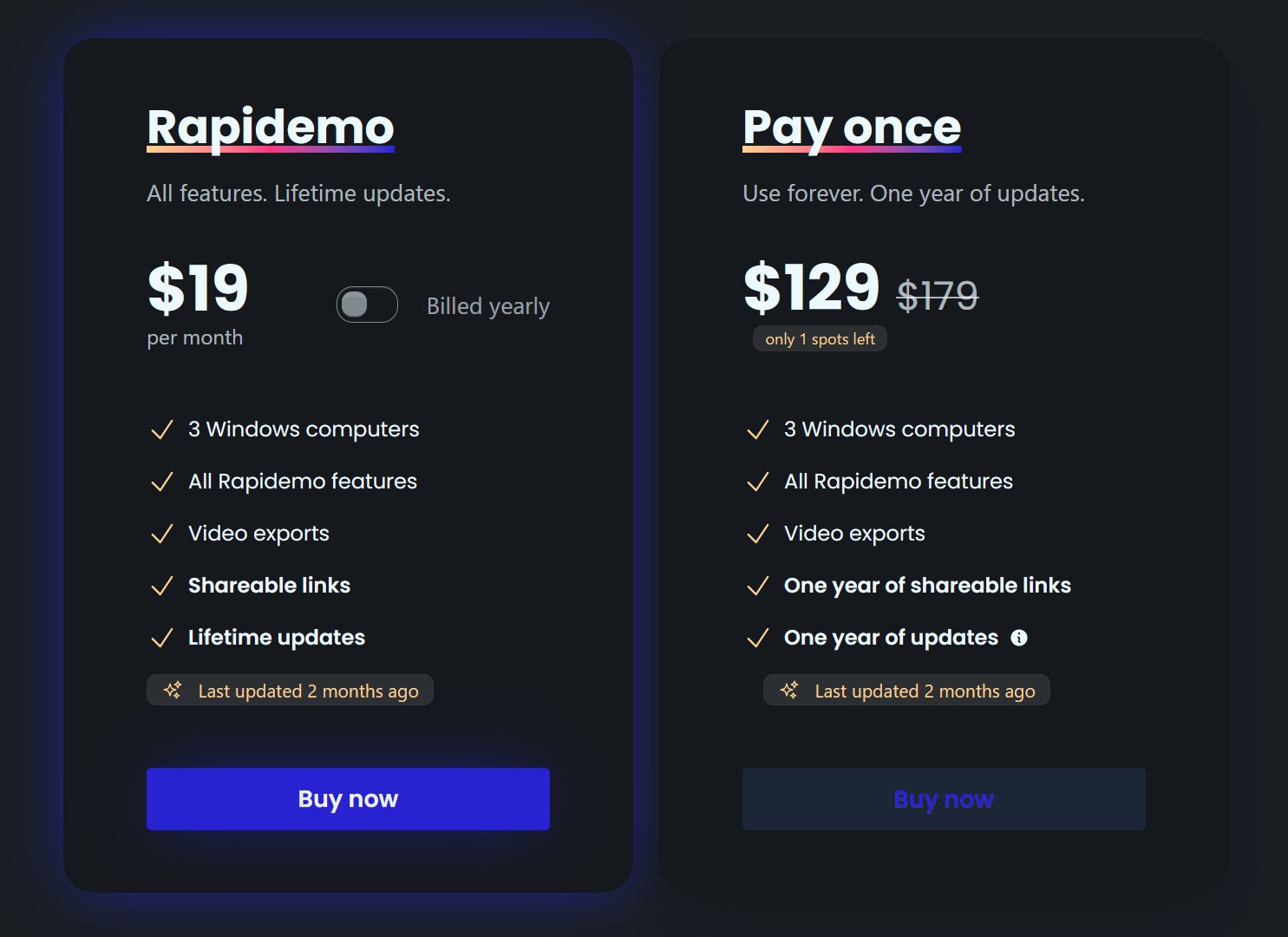
Rapidemo starts at $9/month billed annually, with a monthly plan and a one-time lifetime license also available. See the pricing page for full details.
Can I get a refund?
Yes. Lifetime license purchases are refundable within 7 days. Subscriptions and lifetime renewals are non-refundable.
What Rapidemo users are saying
940+ creators record their screen with Rapidemo. Here is what they say about it.
Harry Symons
Rafael TG
@r_a_f_a_e_l
nice. Rapidemo is nuts
ととしま
@toyoshima_dev
Rapidemoめっちゃよかったから課金はしようと思うんだけど、買い切りにするか悩むねえ
使うときだけ毎月課金がお得なのは理解してるんだけど、俺は買い切りって言葉に弱えんだ
Jonnier
@jonniermart
Esta es la mejor herramienta para grabar pantalla en Windows. ❤️
original だいすけ
@daisuke
これ、まさにズームマジックですね。なんの気ないトランジションでも効果的に見える。
Screen Recorder for Windows · Rapidemo https://getrapidemo.com/
aron
@designbyaron
rapidemo is the sauce for windows
Harry Symons
Pablo
@Pabloguiraox
Thanks so much for your incredible tool! It's the BEST screen recording software out there, Amazing job, you're a true legend!
Brad
@brad_agi
Rapidemo is sick! It saved me 2k — almost bought a Mac just for Screen Studio.