How to screen record on a Surface Pro or Surface Laptop

Microsoft’s own Surface support page answers this in one line: on Windows 11, open the Snipping Tool’s video mode or press Win + Shift + R; on Windows 10, use Clipchamp. Game Bar works too. The Surface-specific parts are the Type Cover’s Fn key, which locks the function row, and the Pen’s top button, which opens the screenshot tool but not a recorder.

Free to record and edit. License unlocks export.

Rapidemo is built for Windows

Get a download link sent to your email for when you're back at your computer.

Check your inbox for your download link.

Just one email, no spam. Download for Windows.

Step by step

  1. 1

    Know the Type Cover's Fn key and the Pen button

    On a Type Cover or Surface keyboard, tap Fn once to lock the function keys (a light on the key shows the state) and again to unlock; older Type Covers use Fn + Caps. The Windows recording shortcuts use the Windows key and work either way. There is no PrtScn key: Fn + Spacebar opens a screen snip and Fn + Alt + Spacebar copies the active window. Double-clicking the Surface Pen’s top button opens the screenshot tool; the Pen has no video action.

  2. 2

    Record any region with the Snipping Tool (Windows 11)

    Press Win + Shift + R, drag a rectangle, click Start, then Stop. Microsoft’s Surface page describes the same path through Snipping Tool > Video > New. The MP4 saves under Videos > Screen Recordings by default and opens in Clipchamp for trimming. This records the desktop and File Explorer.

  3. 3

    Record the active app with Xbox Game Bar (Windows 11 and 10)

    Click into the app and press Win + Alt + R; press it again to stop. The clip saves to Videos > Captures as an MP4. Game Bar records one app on one monitor and refuses the desktop; press Win + G and enable gaming features for an app it does not recognize.

  4. 4

    On Windows 10, use Clipchamp

    Microsoft’s Surface page sends Windows 10 users to Clipchamp, which records the screen, the camera or both in sessions of up to 30 minutes and opens the clip in its editor. Game Bar is the alternative for a single app.

  5. 5

    Record a tutorial or demo that looks edited

    For a video you will publish, record with Rapidemo. Choose Screen, a window or an area, add your camera and microphone, and press Record. Zooms land on your clicks, the cursor is smoothed, subtitles are generated on your computer and the camera sits in a styled overlay. Export MP4 up to 4K or a GIF. On a Surface in S mode, switch out of S mode first (Settings > System > Activation), which is free and one-way.

What is specific to Surface

The Fn key is a lock. On Type Covers and Surface keyboards the top row shows F1 to F12 with media icons, and a tap on Fn locks the row to function keys; the light on the key shows the state. The oldest Type Covers use Fn + Caps instead. On recent Surface Pro and Surface Laptop models, the Surface app can change what the Copilot and top-row keys do.

No PrtScn. Type Covers have no Print Screen key. Fn + Spacebar snips the screen and Fn + Alt + Spacebar copies the active window; Power + Volume Up takes a screenshot on tablets without a keyboard. None of these record video; for that, use the shortcuts above.

The Pen. The top button of the Surface Pen opens Whiteboard, Snip & Sketch or Sticky Notes depending on how you press it. Microsoft lists no recording action for it.

S mode. Some Surface Laptop Go and Surface Go models ship in S mode, which allows Store apps only. The built-in recorders are Store apps and keep working. A third-party recorder needs you to leave S mode first, a free one-way switch under Settings > System > Activation.

Where the files go

Game Bar writes MP4 clips to Videos > Captures. The Snipping Tool saves under Videos > Screen Recordings by default and shows the folder in its settings.

From a raw clip to a video you can publish

The built-in tools produce raw footage: no camera, no zoom, the cursor wobble intact. For a tutorial or a demo, Rapidemo records the same screen on your Surface and adds zoom on clicks, cursor smoothing, subtitles and a camera overlay while you record. The full Windows guide compares every method; camera and microphone covers the Surface’s built-in camera.

How to screen record on a Surface Pro or Surface Laptop: FAQ

Common questions, answered briefly.

How do I screen record on a Surface Pro?

On Windows 11, press Win + Shift + R to record any region with the Snipping Tool. On Windows 10 and 11, Win + Alt + R records the active app with Xbox Game Bar. Microsoft’s Surface page suggests Clipchamp on Windows 10.

Can the Surface Pen start a screen recording?

No. The Pen’s top button opens Whiteboard on a click, the screenshot tool on a double-click and Sticky Notes on a hold; you can change those under Pen and Windows Ink, but none of the options records video.

Where are Surface screen recordings saved?

Game Bar clips go to Videos > Captures. Snipping Tool recordings go to Videos > Screen Recordings by default. Screenshots go to Pictures > Screenshots.

Does S mode stop me from screen recording on a Surface?

No. The Snipping Tool, Game Bar and Clipchamp are Store apps and work in S mode. S mode only blocks recorders installed from outside the Store, such as Rapidemo; switching out of S mode is free and permanent.

Can I try Rapidemo for free?

Yes. Download Rapidemo and use every feature for free. You only need a license to export your finished video or GIF.

How much does Rapidemo cost?

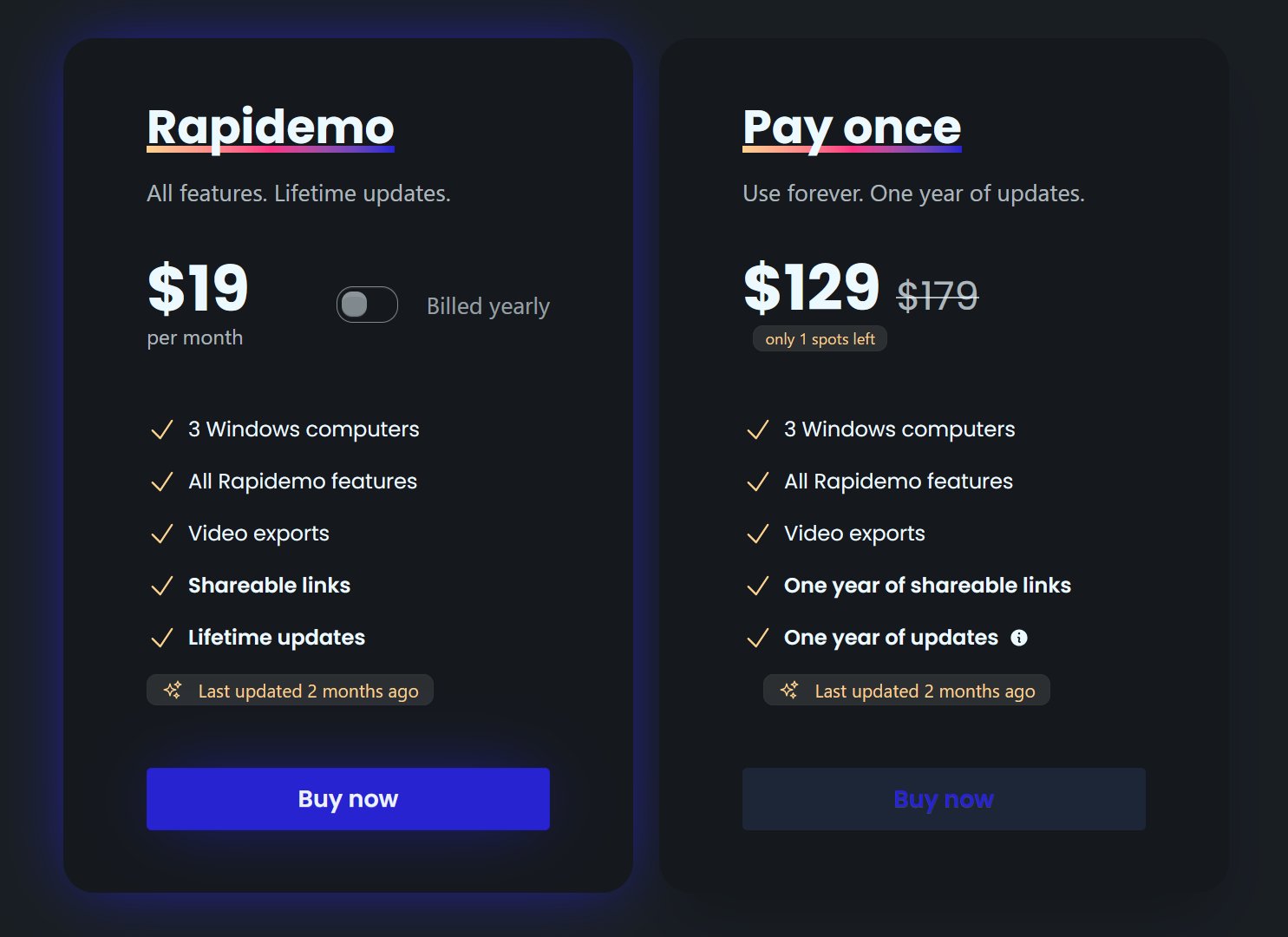
Rapidemo starts at $9/month billed annually, with a monthly plan and a one-time lifetime license also available. See the pricing page for full details.

Can I get a refund?

Yes. Lifetime license purchases are refundable within 7 days. Subscriptions and lifetime renewals are non-refundable.

What Rapidemo users are saying

950+ creators record their screen with Rapidemo. Here is what they say about it.

Headshot of Harry Symons
Harry Symons
I've been really enjoying using Rapidemo – it's incredibly easy to use and makes creating videos quick and straightforward. The interface is intuitive, and I was able to get started right away without any learning curve. Highly recommend for anyone looking for simple, effective video software.
Headshot of ととしま
ととしま @toyoshima_dev
Rapidemoめっちゃよかったから課金はしようと思うんだけど、買い切りにするか悩むねえ
使うときだけ毎月課金がお得なのは理解してるんだけど、俺は買い切りって言葉に弱えんだ
Headshot of Jonnier
Jonnier @jonniermart
Esta es la mejor herramienta para grabar pantalla en Windows. ❤️
Headshot of original だいすけ
これ、まさにズームマジックですね。なんの気ないトランジションでも効果的に見える。

Screen Recorder for Windows · Rapidemo https://getrapidemo.com/
Headshot of aron
aron @designbyaron
rapidemo is the sauce for windows
Headshot of Harry Symons
Harry Symons
Headshot of Pablo
Pablo @Pabloguiraox
Thanks so much for your incredible tool! It's the BEST screen recording software out there, Amazing job, you're a true legend!
Headshot of Brad
Brad @brad_agi
Rapidemo is sick! It saved me 2k — almost bought a Mac just for Screen Studio.
Records product demos