How to record a PowerPoint presentation on Windows

PowerPoint for Windows can record itself: narration, your camera, ink and slide timings, exported as an MP4 up to 4K. That is the right tool for a narrated deck. If you want to show anything outside the slides, or you want the camera in a styled overlay with zooms on the details, you record the screen instead. Here are both, step by step.

Free to record and edit. License unlocks export.

Rapidemo is built for Windows

Get a download link sent to your email for when you're back at your computer.

Check your inbox for your download link.

Just one email, no spam. Download for Windows.

Step by step

  1. 1

    Record the deck with PowerPoint's Record feature

    Open the presentation and click Record near the top right (or Record > From Beginning). Turn the camera on or off, pick Blur Background if you want it, and press the red button. Narrate each slide and use the arrows to move on. Your notes show as a teleprompter at the top. Narration is not recorded during slide transitions, so pause a beat before you advance. Press Stop and close; the narration, timings and ink are saved on each slide.

  2. 2

    Export the recorded deck as a video

    Go to File > Export > Create a Video. Choose Ultra HD (4K), Full HD (1080p), HD (720p) or Standard (480p), keep “Use Recorded Timings and Narrations”, and set the seconds per slide for any slide without a recording (the default is 5). Click Create Video and save as MP4. Long decks can take a while to export.

  3. 3

    Record a region of the screen from inside PowerPoint

    To put a short screen capture on a slide, open the slide and go to Insert > Screen Recording. Click Select Area (Win + Shift + E) and drag over the region, or press Win + Shift + B for the full screen. Audio and the mouse pointer are recorded by default; toggle them on the dock. Press Win + Shift + Q to stop. The clip lands on the slide; right-click it and choose Save Media as to get the MP4 file.

  4. 4

    Record the whole presentation with a screen recorder

    For a presentation that includes a browser, a demo or a second app, record the screen while you present. Open Rapidemo, choose Screen or the PowerPoint window, add your camera and microphone, write your talking points in Notes, and press Record. Start the slide show and present. Rapidemo zooms in on your clicks, smooths the cursor and keeps your camera in an overlay that shrinks during zooms.

  5. 5

    Add subtitles and export

    In the editor, click Transcribe to generate subtitles on your computer, then trim the start and end. Export MP4 up to 4K, or a portrait version for social without re-recording. See exporting.

Which method fits

A narrated deck, nothing else on screen. PowerPoint’s Record feature. It keeps every slide’s narration separately, so you can redo one slide without re-recording the rest, and it exports a clean MP4 with the animations intact.

A short clip of something outside the deck, placed on a slide. Insert > Screen Recording. It is quick and the result is embedded where you need it.

A presentation that moves between the deck and a live demo, or a video you will publish. A screen recorder. PowerPoint cannot see outside itself, and its camera frame is fixed in a corner. Rapidemo records the screen, your camera and your voice on separate tracks, adds zooms where you click in the demo, and lets you move the camera, change the background and add subtitles afterwards.

Tips for a clean recording

Set the slide show to play in a window (in Set Up Slide Show, choose Browsed by an individual) if you want to switch between the deck and another app without leaving full screen.

Write your talking points in Rapidemo’s Notes window. It stays on your screen and out of the video, the same job PowerPoint’s teleprompter does inside the Record view.

Record system audio if the deck has embedded video or sound. In PowerPoint’s Record feature it is captured with the slide; in a screen recorder you turn it on next to the microphone. See system audio.

Export at the resolution your audience watches. 1080p covers YouTube and course platforms. 4K matters when slides carry small text and viewers will go full screen.

How to record a PowerPoint presentation on Windows: FAQ

Common questions, answered briefly.

Can PowerPoint record my webcam while I present?

Yes. The Record feature captures your camera in a corner of each slide, with a Blur Background option, and includes it in the exported video. For a camera overlay that moves and resizes after recording, use a screen recorder such as Rapidemo instead.

Does PowerPoint's recording include my voice?

Yes. Narration is recorded per slide from your microphone, along with ink and slide timings. It is not recorded while a slide transition plays, so pause before advancing.

Where does the PowerPoint screen recording go?

Insert > Screen Recording embeds the clip on the slide. Right-click it and choose Save Media as to save an MP4 to disk. Create a Video exports the whole narrated deck as MP4 or WMV.

Can I record a PowerPoint presentation on the web version?

No. PowerPoint for the web does not support recording a slide show. Use the Windows desktop app, or a screen recorder.

Can I try Rapidemo for free?

Yes. Download Rapidemo and use every feature for free. You only need a license to export your finished video or GIF.

How much does Rapidemo cost?

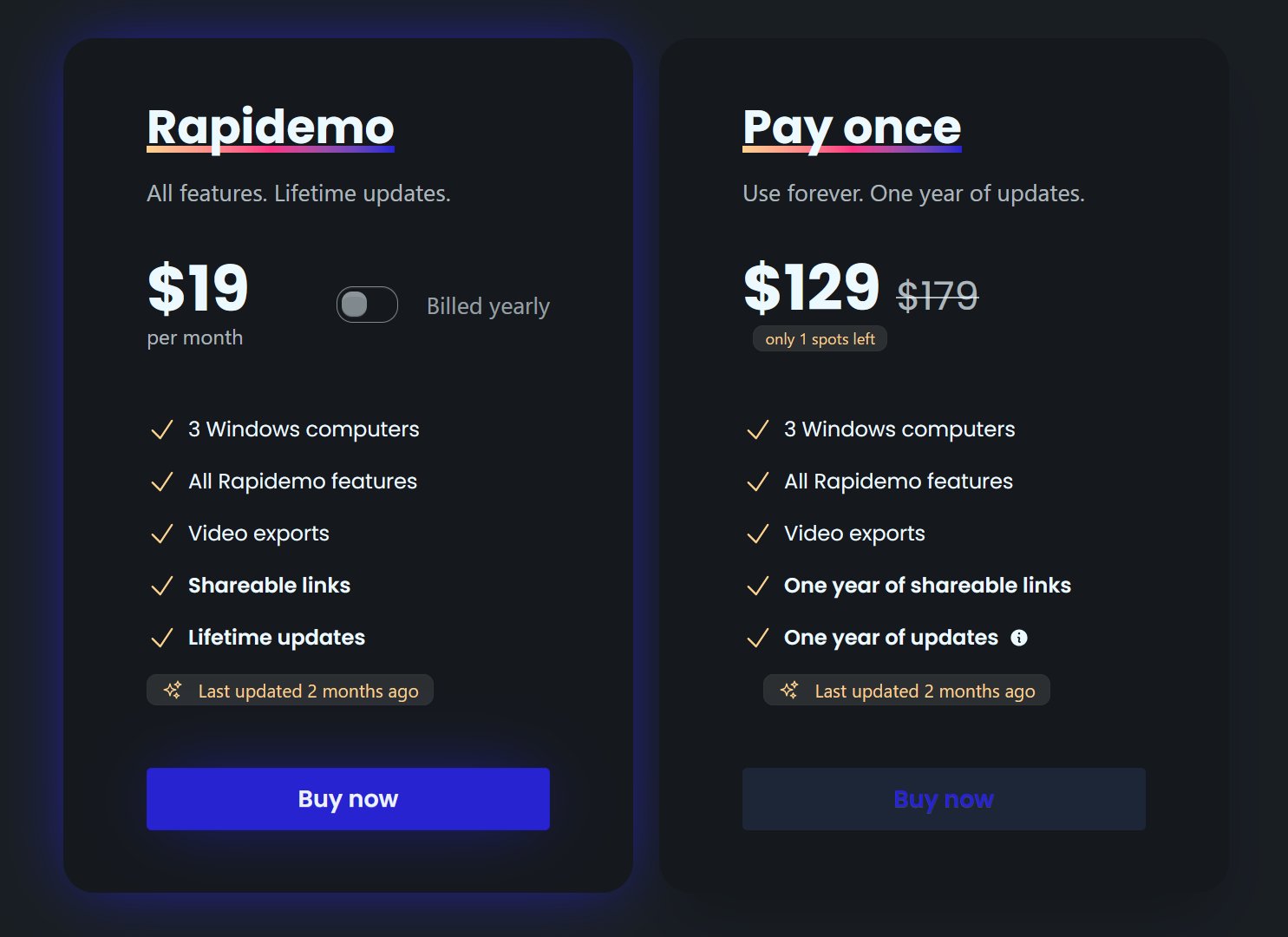
Rapidemo starts at $9/month billed annually, with a monthly plan and a one-time lifetime license also available. See the pricing page for full details.

Can I get a refund?

Yes. Lifetime license purchases are refundable within 7 days. Subscriptions and lifetime renewals are non-refundable.

What Rapidemo users are saying

950+ creators record their screen with Rapidemo. Here is what they say about it.

Headshot of Harry Symons
Harry Symons
I've been really enjoying using Rapidemo – it's incredibly easy to use and makes creating videos quick and straightforward. The interface is intuitive, and I was able to get started right away without any learning curve. Highly recommend for anyone looking for simple, effective video software.
Headshot of ととしま
ととしま @toyoshima_dev
Rapidemoめっちゃよかったから課金はしようと思うんだけど、買い切りにするか悩むねえ
使うときだけ毎月課金がお得なのは理解してるんだけど、俺は買い切りって言葉に弱えんだ
Headshot of Jonnier
Jonnier @jonniermart
Esta es la mejor herramienta para grabar pantalla en Windows. ❤️
Headshot of original だいすけ
これ、まさにズームマジックですね。なんの気ないトランジションでも効果的に見える。

Screen Recorder for Windows · Rapidemo https://getrapidemo.com/
Headshot of aron
aron @designbyaron
rapidemo is the sauce for windows
Headshot of Harry Symons
Harry Symons
Headshot of Pablo
Pablo @Pabloguiraox
Thanks so much for your incredible tool! It's the BEST screen recording software out there, Amazing job, you're a true legend!
Headshot of Brad
Brad @brad_agi
Rapidemo is sick! It saved me 2k — almost bought a Mac just for Screen Studio.
Records product demos